DiaCraft
Systems, applications and data stores
Draw each system or application as a shape. Basic Shapes has 12 figures, from the rectangle and the ellipse to the hexagon. For a database, use the Database shape of Basic Flowchart or the Data Store of Gane-Sarson.
- Make your own shapes with the Rectangle, Ellipse, Line, Arc, Freeform and Pencil tools, and combine shapes with Union, Combine, Fragment, Intersect and Subtract.
- Insert a picture for a logo or an icon you have the rights to use.
- Open a stencil file (
.vssx,.vssmor.diacraft-stencil) from More Shapes → Open Stencil to drag its shapes onto the page.
Group systems in containers
Select the shapes of a domain, a zone or a team and choose Insert → Container: one of 14 styles puts a frame with a heading round them. The members move, copy and delete with their container, and a shape you drop into it joins it. The Container Format tab sets the margins, fits the container to its contents or resizes it as they change, locks it, selects its contents, or disbands it.
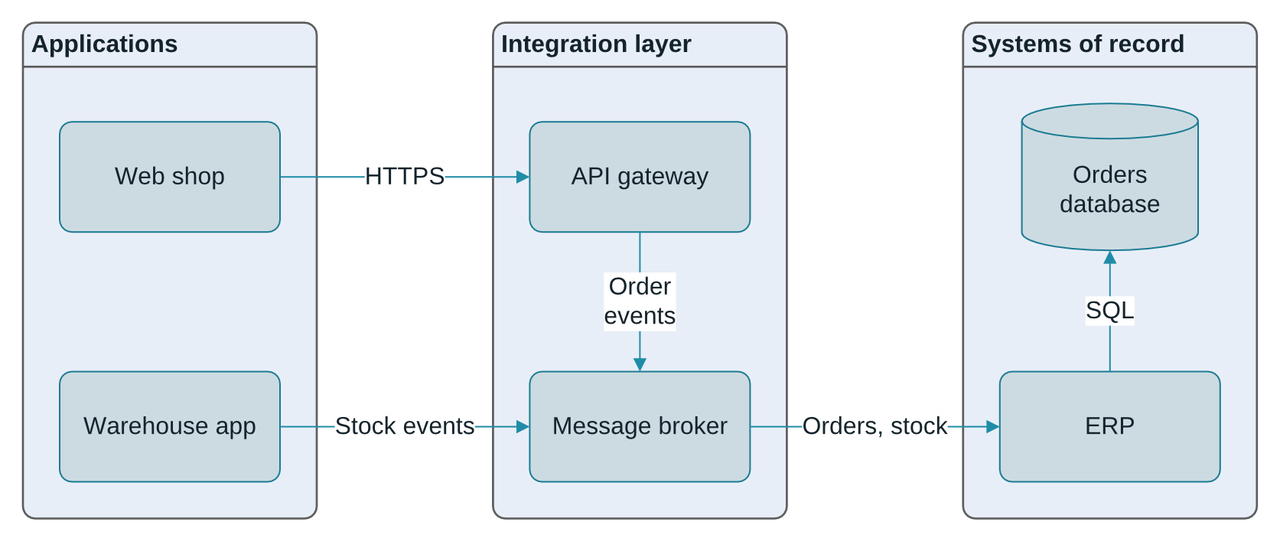
diacraft-cli export. Scroll the picture sideways to see all of it.Connections and data flows
Join the systems with connectors, right-angle, straight or curved, that stay glued when you move a shape. Label each connector with the protocol or the data it carries, and choose arrowheads from 46 line ends to show which way it flows. Line jumps mark where two connectors cross.
For a data flow diagram, the Gane-Sarson stencil has an Interface, a Process and a Data Store, and a Data Flow connector that takes a label.
Layers and pages for each view
Put shapes on layers, such as applications, integrations and infrastructure. Layer Properties shows, hides, locks or prints each layer, or gives it a colour, so one drawing can hold several views.
Use one page for a context view and further pages for the detail. Link a shape to the page that details it with Insert → Link, and Ctrl+click the shape to go there. A background page holds a frame and a title block for every page that uses it.
ArchiMate views with the general shapes
DiaCraft has no ArchiMate stencil yet: none of the notation’s element shapes, icons or relationship line styles. You can still sketch a view of a model with what it has:
- A container for each layer of the model, such as business, application and technology, with the layer’s name as its heading. Put its shapes on a layer of the drawing as well, to show, hide or lock that layer.
- A shape for each element, with its name as its text and its type in a Shape Data field you define.
- A connector for each relationship, labelled with its name, with the line end you choose from 46.
Such a drawing is a picture of the model and not the model: DiaCraft does not check it against the notation’s rules and cannot exchange it with a modelling tool.
Data on each shape
Shape Data holds facts about a shape, such as its owner, its version or the protocol of a connection. Define the fields with Define Shape Data, each with a type, a format and a prompt, and fill them in the Shape Data window. Find searches shape data as well as text. Reviewers can leave comments and replies on the drawing.
What it does not have yet
- Notations and icons. No stencil for a modelling notation such as ArchiMate, UML or BPMN, and no icon sets for cloud services, networks or integration patterns.
- External data. A shape cannot be linked to a spreadsheet or a database: its Shape Data is typed in.
- An early release. Many controls of the window are shown but do not work yet.