DiaCraft
 DiaCraft
What stays on your computer
Everything you draw stays in the page, in your browser’s memory. Once the editor has loaded it makes no network request but for two files of its own, which come from the same address as the editor the first time they are shown: the picture on the File view’s Home page and the list of licences. It sends no drawing, no usage data and no error report. It stores nothing in cookies, local storage or any other browser storage, and it asks for no account. A file you open is read by the page on your computer and goes nowhere else, and a file you save or export is made on your computer and handed to your browser. Close or reload the tab and the drawing in it is gone, so save what you want to keep: while the drawing has changes that are not saved, your browser asks before it closes or reloads the tab, in words of its own.
The browser version is a site of its own, beside this one. Its page and its files come from that address, and nothing is loaded from another one. Privacy details
What you can do
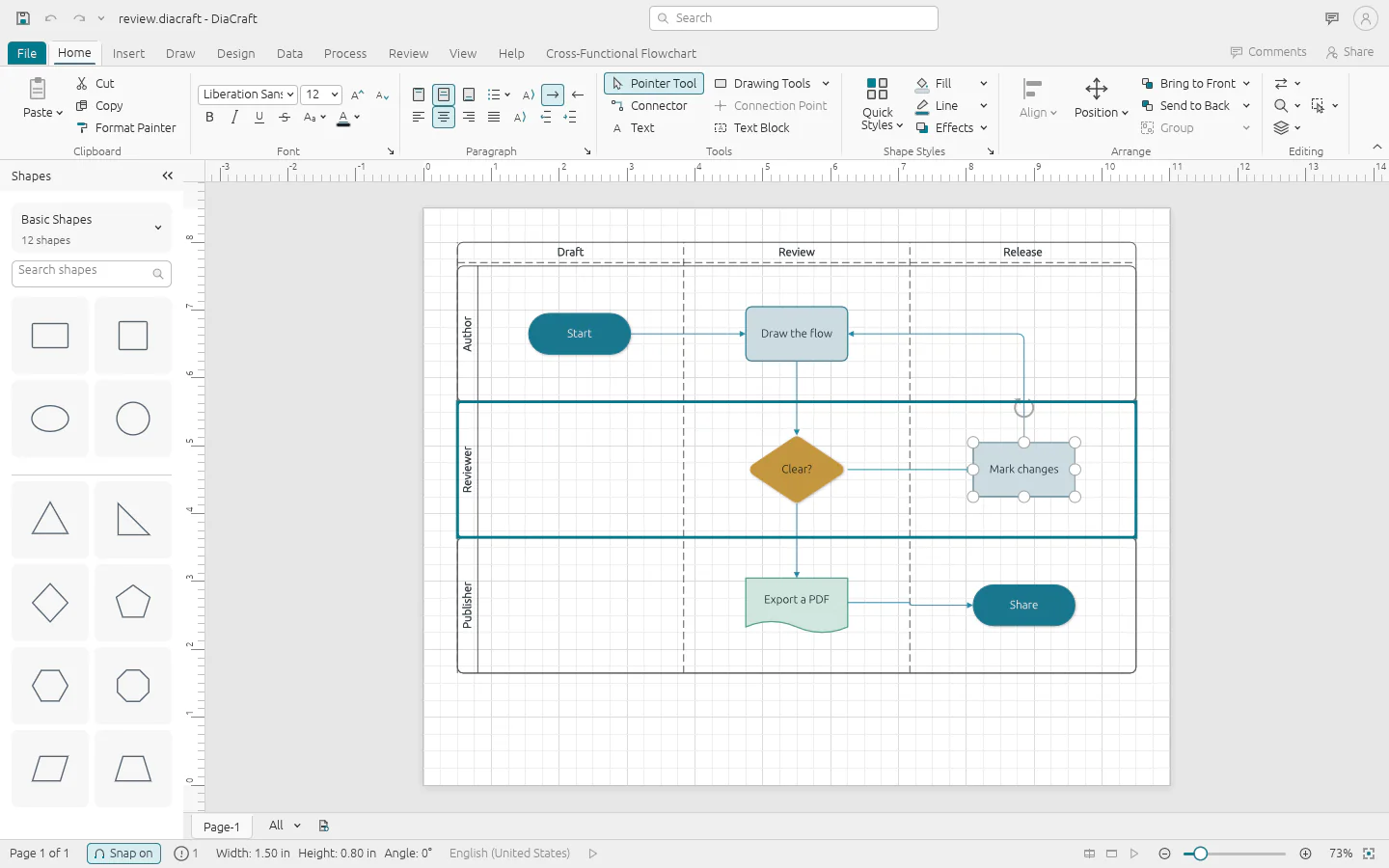
Start a drawing with File → New, drop shapes from the seven built-in stencils, join them with connectors, type labels, and change fonts, colours and lines. Add pages, change the theme, set up the page and use undo and redo. These are the controls of the desktop window, drawn by the same program.
Open a drawing with File → Open or Ctrl+O, or drop a file on the page: .diacraft files, Visio drawings, stencils and templates (.vsdx, .vsdm, .vssx, .vssm, .vstx, .vstm), .odg, .otg and .fodg files, and stencil files from More Shapes → Open Stencil. Save writes the file in the type you choose, .diacraft, .vsdx or .odg among others. Where your browser lets a page write to a file you choose, Save writes to that file; in every other browser it downloads the file under the name you give it, and the card that asks for the name says so. Export writes the page as PNG, SVG or PDF, and Print saves the PDF that a printer would be given, which you print from your PDF viewer.
In a window of its own
A browser tab keeps some keys for the browser and never gives them to the page: Ctrl+N opens another browser window, Ctrl+T a new tab and Ctrl+W closes the tab (Command instead of Ctrl on a Mac). DiaCraft can open in a window of its own, with no tabs and no address bar, and there those keys go to the editor first: Ctrl+N starts a new drawing, and Ctrl+W closes the window after it asks about changes that are not saved. Keys such as Ctrl+R, Ctrl+H and Ctrl+U, which the browser also acts on when a page gets them in a tab, belong to the editor in every window of this version.
In Chrome and Edge, the File view’s Home page has a button, Open in its own window, which shows the browser’s own install prompt; installing puts a shortcut for DiaCraft on your computer, and the editor stores nothing in your browser. In Safari, choose File, then Add to Dock. Firefox has no windows of their own for web apps on Linux or macOS. You can also stay in the tab and use View, Full Screen: in Chrome and Edge it gives the editor the keys the browser keeps, until you hold Esc.
What the desktop app does and this version does not
- Files. The page reads a file into your browser’s memory, which is smaller than your computer’s, so a very large drawing does not open: DiaCraft says so in words and leaves the drawing you have open as it was. Twenty thousand shapes opened in testing and forty thousand did not. A browser that cannot write to a file you choose saves by download, so each Save makes a new download and your browser may rename a file that is already in the downloads folder.
- Export and print. There is no printer: Print saves a PDF, and you print that file from your PDF viewer. PNG, SVG and PDF export work as in the desktop app, and the page’s fonts are the two built into the editor.
- Fonts. The editor has the two typefaces built into it and cannot see the fonts installed on your computer. A drawing set in another font looks different from the same drawing on the desktop.
- Automation. The control port, the command line tool and the MCP server for AI agents need a program on your computer, which a tab is not.
- Speed. The editor runs on one thread, so a very large drawing is slower here than in the desktop app.
The desktop app has all of these and opens larger drawings. Download it for Linux, Windows or macOS.
Which browsers work
DiaCraft draws with WebGPU where your browser offers it, and with WebGL 2 where it does not, so it needs a recent desktop browser with WebAssembly and one of the two. It has been run in current releases of Chrome and Firefox on Linux. Other recent desktop browsers, such as Edge and Safari, should work and have not been tried. Phones and tablets have not been tried. If your browser cannot start the editor, the page says so.
The libraries inside it
The licences of the libraries that the web version is built from are listed in THIRD-PARTY-LICENSES-WEB.txt. The editor shows the same list under File, About, Third-party licences. The desktop downloads carry a list of their own.