DiaCraft
Start from the template
Choose File → New and pick Organization Chart, under Business. It opens a landscape page with an Executive already at the top, and the Organization Chart Shapes open beside the Basic Shapes. While the drawing holds a position, the ribbon has an Org Chart tab.
The position shapes
The Organization Chart Shapes are six positions: Executive, Manager, Position, Assistant, Consultant and Vacancy. They are plain boxes told apart by size, tint and the weight of the line. Each shows a name over a title.
Each position has five Shape Data fields: Name, Title, Department, Telephone and E-mail. Type a name or a title in the Shape Data window and the text on the shape follows. Until you do, a new position shows Name over its kind, such as Manager, and a vacancy says Vacant.
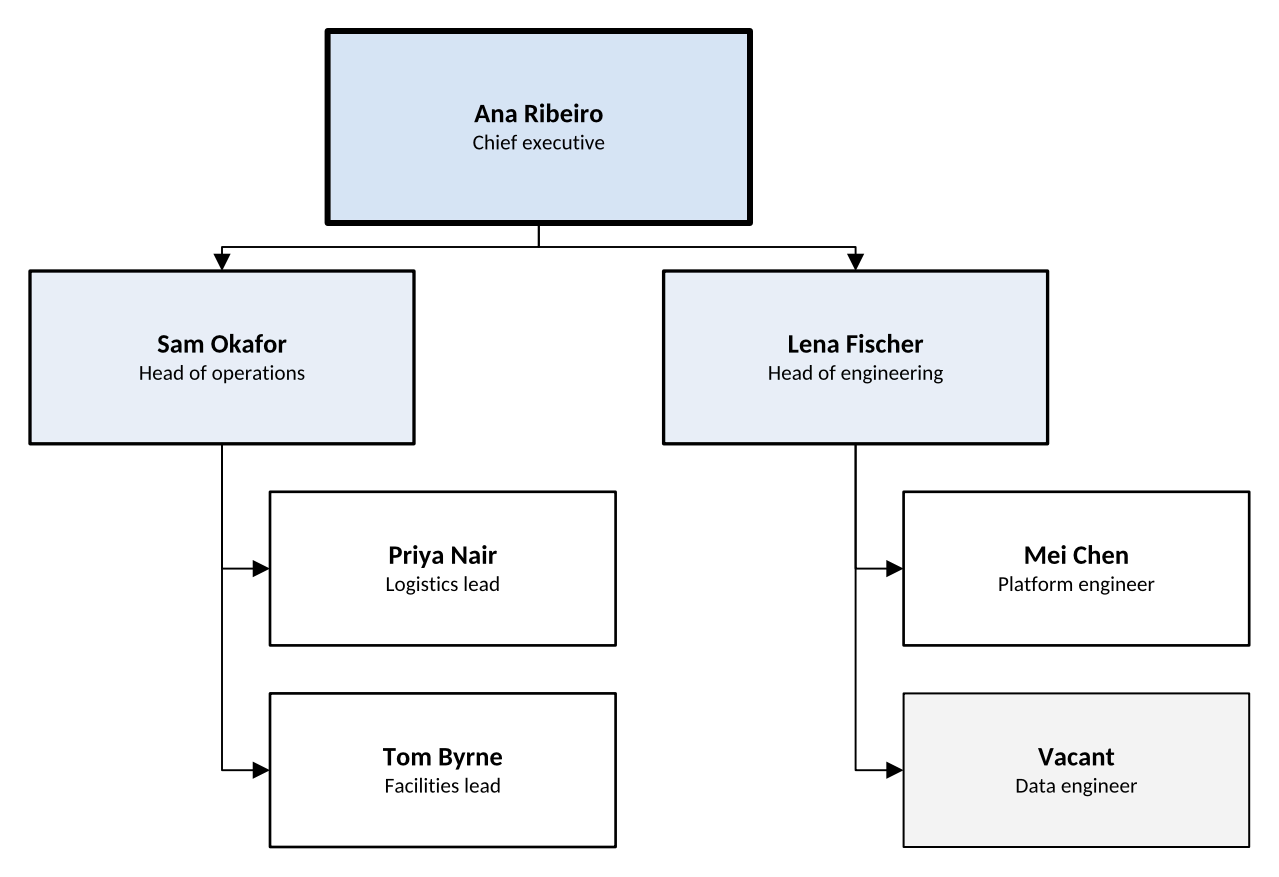
diacraft-cli export. Scroll the picture sideways to see all of it.Add people and reporting lines
- Drop a person on their manager. Drag a position from the Shapes window and drop it on the manager’s shape. DiaCraft draws the line from the manager, puts the new person last in that team and lays the chart out again, in one step that Undo takes back.
- Draw a reporting line. A connector glued from one position to another makes the first the manager of the second. Choose the Connector tool (Home → Tools, or Ctrl+3) and drag from the manager to the report.
- Move a person to another manager. Delete the line from the old manager, draw one from the new manager, then choose Re-Layout. Dragging a person already on the page onto a new manager does not move them yet.
- Show an open role. Drop a Vacancy where the position will be.
Lay the chart out
On the Org Chart tab, Layout lays the whole chart out in one of six ways: top to bottom, bottom to top, left to right or right to left, with each manager’s reports side by side, or hanging to the right or to the left, with each manager’s reports in a column. No two boxes overlap, and the lines are glued again and routed.
Select a manager and choose Arrange Subordinates to set out that team on its own: horizontal, vertical to the right, vertical to the left, or the same as the chart. Re-Layout lays the chart out again and keeps these choices, which are saved with the drawing. Undo puts everything back.
Photos on positions
Select a position and choose Insert Picture on the Org Chart tab to put a PNG, JPEG, BMP, EMF or WMF file on it. The picture goes in a square at the left of the shape, the name and title move to its right, and both follow when the shape is resized. Change Picture, Delete Picture and Hide Picture work on the position selected; a hidden picture is kept. A GIF or a TIFF file is kept but drawn as a placeholder.
What it does not have yet
- No import. A chart cannot be made from a spreadsheet or a data file yet: add people one by one.
- One page, one kind of line. No team frames, no dotted-line reports and no chart across several pages.
- Controls still to come. Fit to Page, Synchronize, the Move and Show/Hide Subordinates controls and the Organization Data group are on the Org Chart tab but do nothing yet.
- An early release. Many controls of the window are shown but do not work yet.